JavaScript data types and data structures
Programming languages all have built-in data structures, but these
often differ from one language to another. This article attempts to
list the built-in data structures available in JavaScript and what
properties they have. These can be used to build other data
structures. Wherever possible, comparisons with other languages are
drawn.
Dynamic typing
JavaScript is a loosely typed and dynamic language. Variables in JavaScript are not directly associated with any particular value type, and any variable can be assigned (and re-assigned) values of all types:
JavaScript is a loosely typed and dynamic language. Variables in JavaScript are not directly associated with any particular value type, and any variable can be assigned (and re-assigned) values of all types:
let foo = 42;
// foo is now a number
foo = 'bar';
// foo is now a string
foo     = true;
// foo is now a boolean
| JavaScript types | ||
| Boolean type: | True | False |
| Null type: | Null | |
| Undefined type: | Undefined | |
| Numeric type: | Number | BigInt |
| Number type | 2^-1074 | -(2^53 − 1) |
| String type | "Name" | "String" |
| Symbol type | Symbol() | Symbol('foo') |
| Objects type | let obj = {} | let obj = new Object() |
Note: You can check if a number is within the range of safe integers
using Number.isSafeInteger(). Outside the range from
Number.MIN_SAFE_INTEGER to Number.MAX_SAFE_INTEGER, JavaScript can
no longer safely represent integers; they will instead be
represented by a double-precision floating point approximation.
What is JavaScript?
Welcome to the MDN beginner's JavaScript course! In this article we
will look at JavaScript from a high level, answering questions such as
"What is it?" and "What can you do with it?", and making sure you are
comfortable with JavaScript's purpose.
Store useful values inside variables. In the above example for instance, we ask for a new name to be entered then store that name in a variable called name.
Operations on pieces of text (known as "strings" in programming). In the above example we take the string "Player 1: " and join it to the name variable to create the complete text label, e.g. "Player 1: Chris".
Running code in response to certain events occurring on a web page. We used a click event in our example above to detect when the label is clicked and then run the code that updates the text label.
And much more!
What is even more exciting however is the functionality built on top of the client-side JavaScript language. So-called Application Programming Interfaces (APIs) provide you with extra superpowers to use in your JavaScript code.
APIs are ready-made sets of code building blocks that allow a developer to implement programs that would otherwise be hard or impossible to implement. They do the same thing for programming that ready-made furniture kits do for home building — it is much easier to take ready-cut panels and screw them together to make a bookshelf than it is to work out the design yourself, go and find the correct wood, cut all the panels to the right size and shape, find the correct-sized screws, and then put them together to make a bookshelf.
| Prerequisites: | Basic computer literacy, a basic understanding of HTML and CSS. |
| Objective: | To gain familiarity with what JavaScript is, what it can do, and how it fits into a web site. |
So what can it really do?
The core client-side JavaScript language consists of some common
programming features that allow you to do things like:
Store useful values inside variables. In the above example for instance, we ask for a new name to be entered then store that name in a variable called name.
Operations on pieces of text (known as "strings" in programming). In the above example we take the string "Player 1: " and join it to the name variable to create the complete text label, e.g. "Player 1: Chris".
Running code in response to certain events occurring on a web page. We used a click event in our example above to detect when the label is clicked and then run the code that updates the text label.
And much more!
What is even more exciting however is the functionality built on top of the client-side JavaScript language. So-called Application Programming Interfaces (APIs) provide you with extra superpowers to use in your JavaScript code.
APIs are ready-made sets of code building blocks that allow a developer to implement programs that would otherwise be hard or impossible to implement. They do the same thing for programming that ready-made furniture kits do for home building — it is much easier to take ready-cut panels and screw them together to make a bookshelf than it is to work out the design yourself, go and find the correct wood, cut all the panels to the right size and shape, find the correct-sized screws, and then put them together to make a bookshelf.
Note: Many of the above demos won't work in an older browser — when
experimenting, it's a good idea to use a modern browser like
Firefox, Chrome, Edge or Opera to run your code in. You will need to
consider cross browser testing in more detail when you get closer to
delivering production code (i.e. real code that real customers will
use).
Note: These APIs are advanced, and we'll not be covering any of
these in this module. You can find out much more about these in our
Client-side web APIs module.
What is JavaScript doing on your page?
Here we'll actually start looking at some code, and while doing so,
explore what actually happens when you run some JavaScript in your
page.
Let's briefly recap the story of what happens when you load a web page in a browser (first talked about in our How CSS works article). When you load a web page in your browser, you are running your code (the HTML, CSS, and JavaScript) inside an execution environment (the browser tab). This is like a factory that takes in raw materials (the code) and outputs a product (the web page).
A very common use of JavaScript is to dynamically modify HTML and CSS to update a user interface, via the Document Object Model API (as mentioned above). Note that the code in your web documents is generally loaded and executed in the order it appears on the page. Errors may occur if JavaScript is loaded and run before the HTML and CSS that it is intended to modify. You will learn ways around this later in the article, in the Script loading strategies section.
Compiled languages on the other hand are transformed (compiled) into another form before they are run by the computer. For example, C/C++ are compiled into machine code that is then run by the computer. The program is executed from a binary format, which was generated from the original program source code.
JavaScript is a lightweight interpreted programming language. The web browser receives the JavaScript code in its original text form and runs the script from that. From a technical standpoint, most modern JavaScript interpreters actually use a technique called just-in-time compiling to improve performance; the JavaScript source code gets compiled into a faster, binary format while the script is being used, so that it can be run as quickly as possible. However, JavaScript is still considered an interpreted language, since the compilation is handled at run time, rather than ahead of time.
Let's briefly recap the story of what happens when you load a web page in a browser (first talked about in our How CSS works article). When you load a web page in your browser, you are running your code (the HTML, CSS, and JavaScript) inside an execution environment (the browser tab). This is like a factory that takes in raw materials (the code) and outputs a product (the web page).
A very common use of JavaScript is to dynamically modify HTML and CSS to update a user interface, via the Document Object Model API (as mentioned above). Note that the code in your web documents is generally loaded and executed in the order it appears on the page. Errors may occur if JavaScript is loaded and run before the HTML and CSS that it is intended to modify. You will learn ways around this later in the article, in the Script loading strategies section.
Browser security
Each browser tab has its own separate bucket for running code in
(these buckets are called "execution environments" in technical terms)
— this means that in most cases the code in each tab is run completely
separately, and the code in one tab cannot directly affect the code in
another tab — or on another website. This is a good security measure —
if this were not the case, then pirates could start writing code to
steal information from other websites, and other such bad things.
Note: There are ways to send code and data between different
websites/tabs in a safe manner, but these are advanced techniques
that we won't cover in this course.
If you swapped the order of the first two lines of code, it would no longer work — instead, you'd get an error returned in the browser developer console — TypeError: para is undefined. This means that the para object does not exist yet, so we can't add an event listener to it.
JavaScript running order
When the browser encounters a block of JavaScript, it generally runs
it in order, from top to bottom. This means that you need to be
careful what order you put things in. For example, let's return to
the block of JavaScript we saw in our first example:
  const p =
 document.querySelector('p');

 p.addEventListener(
 'click', updateName
);

function updateName() {
const name =
 prompt('Enter a new name');
p.textContent =
 `Player 1: ${name}`;
}If you swapped the order of the first two lines of code, it would no longer work — instead, you'd get an error returned in the browser developer console — TypeError: para is undefined. This means that the para object does not exist yet, so we can't add an event listener to it.
Note: This is a very common error — you need to be careful that
the objects referenced in your code exist before you try to do
stuff to them.
Interpreted versus compiled code
You might hear the terms interpreted and compiled in the context of
programming. In interpreted languages, the code is run from top to
bottom and the result of running the code is immediately returned. You
don't have to transform the code into a different form before the
browser runs it. The code is received in its programmer-friendly text
form and processed directly from that.
Compiled languages on the other hand are transformed (compiled) into another form before they are run by the computer. For example, C/C++ are compiled into machine code that is then run by the computer. The program is executed from a binary format, which was generated from the original program source code.
JavaScript is a lightweight interpreted programming language. The web browser receives the JavaScript code in its original text form and runs the script from that. From a technical standpoint, most modern JavaScript interpreters actually use a technique called just-in-time compiling to improve performance; the JavaScript source code gets compiled into a faster, binary format while the script is being used, so that it can be run as quickly as possible. However, JavaScript is still considered an interpreted language, since the compilation is handled at run time, rather than ahead of time.
Difference Between isnan() and Number.isnan()
isNaN() method returns true if a value is Not-a-Number.
Number.isNaN() returns true if a number is Not-a-Number.
In other words:
isNaN() converts the value to a number before testing it.
Number.isNaN() returns true if a number is Not-a-Number.
In other words:
isNaN() converts the value to a number before testing it.
ExamplesL
// This returns true;
isNaN('Hello');
// This returns false;
Number.isNaN('Hello');
Syntax:
isNaN(value)
What is negative Infinity?
Note: JavaScript shows the NEGATIVE_INFINITY value as -Infinity.
Negative infinity is different from mathematical infinity in the following ways:
1. Negative infinity results in 0 when divided by any other number.
2. When divided by itself or positive infinity, negative infinity return NaN
3. Negative infinity, when divided by any positive number (apart from positive infinity) is negative infinity.
4. Negative infinity, divided by any negative number (apart from negative infinity) is positive infinity.
5. If we multiply negative infinity with NaN, we will get NaN as a result.
6. The product of NaN and negative infinity is 0.
7. The product of two negative infinities is always a positive infinity.
8. The product of both positive and negative infinity is always negative infinity.
Negative infinity is different from mathematical infinity in the following ways:
1. Negative infinity results in 0 when divided by any other number.
2. When divided by itself or positive infinity, negative infinity return NaN
3. Negative infinity, when divided by any positive number (apart from positive infinity) is negative infinity.
4. Negative infinity, divided by any negative number (apart from negative infinity) is positive infinity.
5. If we multiply negative infinity with NaN, we will get NaN as a result.
6. The product of NaN and negative infinity is 0.
7. The product of two negative infinities is always a positive infinity.
8. The product of both positive and negative infinity is always negative infinity.
Syntax
Number.NEGATIVE_INFINITY
How to break JavaScript Code into several lines ?
In this article, we will discuss how to break javascript code into several lines.
We generally break the code into several lines so that it can be read easily by a third person or the programmer <itself class=""></itself>
There are two ways to break JavaScript code into several lines:
We can use the newline escape character i.e “\n”. if we are working on the js file or not rendering the code to the html page.
We can use the <br> tag. if we are working on the html file.
We can optional code formatters like prettier can be used for such purposes. breaking JavaScript code into multiple lines is a process where the clumsiness of code is reduced, Sometimes we write long lines of code which makes it hard for readability.

We can use the newline escape character i.e “\n”. if we are working on the js file or not rendering the code to the html page.
We can use the <br> tag. if we are working on the html file.
We can optional code formatters like prettier can be used for such purposes. breaking JavaScript code into multiple lines is a process where the clumsiness of code is reduced, Sometimes we write long lines of code which makes it hard for readability.
Examples:
<!DOCTYPE html>
<html>
<head>
<title>
 Javascript breaking lines of code
<title>
<head>

<body>
<script>
 // using \n
 console.log(
 "let us see how to break lines
 injavascript,\n what can we do?"
);

<script>
<body>
<html>
company developed JavaScript?
Netscape :- Is the name of the company which developed the javascript the founder of the javascript language is Brenden eich The photograph of the founder is shown below.
According to wikipedia Brendan Eich (/ˈaɪk/; born July 4, 1961) is an American technologist and creator of the JavaScript programming language. He co-founded the Mozilla project, the Mozilla Foundation and the Mozilla Corporation, and served as the Mozilla Corporation's chief technical officer and briefly, as its chief executive officer.
The first ever JavaScript was created by Brendan Eich at Netscape, and has since been updated to conform to ECMA-262 Edition 5 and later versions.The early versions of JavaScript were called Mocha. Not long after a Mocha prototype was introduced into Netscape Communicator (May 1995), it was renamed to LiveScript, purely because the world Live was better for marketing.
According to wikipedia Brendan Eich (/ˈaɪk/; born July 4, 1961) is an American technologist and creator of the JavaScript programming language. He co-founded the Mozilla project, the Mozilla Foundation and the Mozilla Corporation, and served as the Mozilla Corporation's chief technical officer and briefly, as its chief executive officer.
The first ever JavaScript was created by Brendan Eich at Netscape, and has since been updated to conform to ECMA-262 Edition 5 and later versions.The early versions of JavaScript were called Mocha. Not long after a Mocha prototype was introduced into Netscape Communicator (May 1995), it was renamed to LiveScript, purely because the world Live was better for marketing.
ndeclared and undefined variables in JavaScript
Undefined: It occurs when a variable has been declared but has not been assigned with any value. Undefined is not a keyword.
Undeclared: It occurs when we try to access any variable that is not initialized or declared earlier using var or const keyword.
If we use ‘typeof’ operator to get the value of an undeclared variable, we will face the runtime error with return value as “undefined”. The scope of the undeclared variables is always global.

Undeclared: It occurs when we try to access any variable that is not initialized or declared earlier using var or const keyword.
If we use ‘typeof’ operator to get the value of an undeclared variable, we will face the runtime error with return value as “undefined”. The scope of the undeclared variables is always global.
For Example:
Undefined
var geek;
undefined
console.log(geek)//ReferenceError:
myVariable is not defined
console.log(myVariable) Example 1: This example illustrate a situation where an undeclared variable is used.
<script>
function GFG(){
//'use strict'
verifies that no undeclared
// variable's present in our code
   'use strict';
   x = "GeeksForGeeks";
}

 GFG();
//accessing the above function
</script>
ReferenceError: x is not definedExample 2: This example checks whether a given variable is undefined or not.
<!DOCTYPE html>
<html>

<body>
<style>
h1 {
  color: green;
}
</style>

<h1>UNDEFINED OR NOT.</h1>

<button onclick="checkVar()">
  Try it
</button>

<p> id="gfg"></p>

<script>
function checkVar() {
if (
 typeof variable === "undefined"
  ){
 string = "Variable is undefined";
} else {
 string = "Variable is defined";
}
document.getElementById("gfg")
.innerHTML = string;
}
</script>

</body>

</html>
Output:
What are global variables? How are these variable declared?
Scope of Variable
Each variable is defined and can be used within its scope and determines that wherein the program this variable is available to use. The scope means the lifetime of that variable. It means the variable can only be accessed or visible within its scope.
The scope of variables can be defined with their declaration, and variables are declared mainly in two ways:
Global Variable: Outside of all the functions
Local Variable: Within a function block:
What is a Global Variable?
Global variables are those variables which are declared outside of all the functions or block and can be accessed globally in a program.
It can be accessed by any function present in the program.
Once we declare a global variable, its value can be varied as used with different functions.
The lifetime of the global variable exists till the program executes. These variables are stored in fixed memory locations given by the compiler and do not automatically clean up.
Global variables are mostly used in programming and useful for cases where all the functions need to access the same data.
Example:
let a=50, b=40;
function main()
{
console.log(
 "a = %d and b=%d",a,b
);
}
Advantages of Global Variable
Global variables can be accessed by all the functions present in the program.
Only a single declaration is required.
Very useful if all the functions are accessing the same data.
Disadvantages of Global Variable
The value of a global variable can be changed accidently as it can be used by any function in the program.
If we use a large number of global variables, then there is a high chance of error generation in the program.
What is a Local Variable?
Variables that are declared within or inside a function block are known as Local variables.
These variables can only be accessed within the function in which they are declared.
The lifetime of the local variable is within its function only, which means the variable exists till the function executes. Once function execution is completed, local variables are destroyed and no longer exist outside the function.
The reason for the limited scope of local variables is that local variables are stored in the stack, which is dynamic in nature and automatically cleans up the data stored within it.
But by making the variable static with "static" keyword, we can retain the value of local variable.
| Global Variable | Local Variable |
| Global variables are declared outside all the function blocks. | Local Variables are declared within a function block. |
| The scope remains throughout the program. | The scope is limited and remains within the function only in which they are declared. |
| Any change in global variable affects the whole program, wherever it is being used. | Any change in the local variable does not affect other functions of the program. |
| A global variable exists in the program for the entire time the program is executed. | A local variable is created when the function is executed, and once the execution is finished, the variable is destroyed. |
| It can be accessed throughout the program by all the functions present in the program. | It can only be accessed by the function statements in which it is declared and not by the other functions. |
| If the global variable is not initialized, it takes zero by default. | If the local variable is not initialized, it takes the garbage value by default. |
| Global variables are stored in the data segment of memory. | Local variables are stored in a stack in memory. |
| We cannot declare many variables with the same name. | We can declare various variables with the same name but in other functions. |
Window prompt()
The prompt() method displays a dialog box that prompts the user for input.
The prompt() method returns the input value if the user clicks "OK", otherwise it returns null.
Browser Support
The prompt() method returns the input value if the user clicks "OK", otherwise it returns null.
A prompt box is used if you want the user to input a value.
When a prompt box pops up, the user will have to click either "OK" or "Cancel" to proceed.
Do not overuse this method. It prevents the user from accessing other parts of the page until the box is closed.
When a prompt box pops up, the user will have to click either "OK" or "Cancel" to proceed.
Do not overuse this method. It prevents the user from accessing other parts of the page until the box is closed.
Syntax
prompt(text, defaultText)Return Value
| Parameter | Description |
| A string | If the user clicks "OK", the input value is returned. Otherwise null is returned. |
Browser Support
| Chrome | IE | Edge | Firefox | Safari | Opera |
| Support | Support | Support | Support | Support | Support |
The JavaScript this Keyword
In JavaScript, the this keyword refers to an object.
Which object depends on how this is being invoked (used or called).
The this keyword refers to different objects depending on how it is used:
Which object depends on how this is being invoked (used or called).
The this keyword refers to different objects depending on how it is used:
| In an object method, this refers to the object. |
| Alone, this refers to the global object. |
| In a function, this refers to the global object. |
| In a function, in strict mode, this is undefined. |
| In an event, this refers to the element that received the event. |
| Methods like call(), apply(), and bind() can refer this to any object. |
this is not a variable. It is a keyword. You cannot change the value of this.
Example:
fullName : function() {
 return this.firstName +
  " " +
  this.lastName;
}
JavaScript timer
In JavaScript, a timer is created to execute a task or any function at a particular time. Basically, the timer is used to delay the execution of the program or to execute the JavaScript code in a regular time interval. With the help of timer, we can delay the execution of the code. So, the code does not complete it's execution at the same time when an event triggers or page loads.
The best example of the timer is advertisement banners on websites, which change after every 2-3 seconds. These advertising banners are changed at a regular interval on the websites like Amazon. We set a time interval to change them. In this chapter, we will show you how to create a timer.
JavaScript offers two timer functions setInterval() and setTimeout(), which helps to delay in execution of code and also allows to perform one or more operations repeatedly. We will discuss both the timer functions in detail as well as their examples.
The basic syntax of setTimeout() is:
The best example of the timer is advertisement banners on websites, which change after every 2-3 seconds. These advertising banners are changed at a regular interval on the websites like Amazon. We set a time interval to change them. In this chapter, we will show you how to create a timer.
JavaScript offers two timer functions setInterval() and setTimeout(), which helps to delay in execution of code and also allows to perform one or more operations repeatedly. We will discuss both the timer functions in detail as well as their examples.
setTimeout()
The setTimeout() function helps the users to delay the execution of code. The setTimeout() method accepts two parameters in which one is a user-defined function, and another is the time parameter to delay the execution. The time parameter holds the time in milliseconds (1 second = 1000 milliseconds), which is optional to pass.
The basic syntax of setTimeout() is:
setTimeout(function, milliseconds)
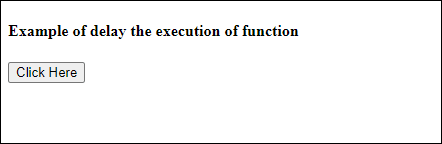
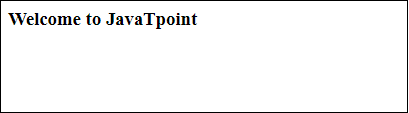
We will use the setTimeout() function to delay the printing of message for 3 seconds. The message will display on the web after 3 seconds of code execution rather than immediately. Now, let's look at the code below to see how it works:
Execution of code after a delay
<html>
<body>
<script>
function delayFunction() {
 //display message on web after
 3 secondson calling delayFunction
document.write('<h3>
  Welcome to JavaTpoint
</h3>');
}
</script>
<h4>
Example of delay the
execution of function
<h4>

<button onclick =
 "setTimeout(delayFunction, 3000)">
Click Here </button>

</body>
</html>
Output
On clicking the Click Here button, the remaining code will execute after 3 seconds. A message Welcome to javaTpoint will display on the web after 3 seconds (3000 milliseconds).
Which symbol is used for comments in Javascript?
// Which symbol is used for comments in Javascript?
// for Single line comments and
/* Multi
Line
Comment
*/
The single line comments always starts by the "//" and any text written in between the "// "and the end of the line is considered as comment and ignored by the JavaScript.
// for Single line comments and
/* Multi
Line
Comment
*/
Multi-line comments have one or more lines of narrative within a set of comment delimiters. The /* delimiter marks the beginning of the comment, and the */ marks the end. You can have your comment span multiple lines and anything between those delimiters is considered a comment.
What is === operator?
Strict equality (===)
The strict equality operator (===) checks whether its two operands are equal, returning a Boolean result. Unlike the equality operator, the strict equality operator always considers operands of different types to be different.
Examples
console.log(1 === 1);
// expected output: true

console.log('hello' === 'hello');
// expected output: true

console.log('1' ===  1);
// expected output: false

console.log(0 === false);
// expected output: false
console.log("hello" === "hello");
// expected output: true;
console.log("hello" === "hola");
// expected output: false;

console.log(3 === 3);
// expected output: true;
console.log(3 === 4);
// expected output: false;

console.log(true === true);
// expected output: true;
console.log(true === false);
// expected output: false;

console.log(null === null);
// expected output: true;
console.log("3" === 3);
// expected output: false;

console.log(true === 1);
// expected output: false;

console.log(null === undefined);
// expected output: false;
const object1 = {
  name: "hello"
}

const object2 = {
  name: "hello"
}

console.log(object1 === object2);
// expected output: false;
console.log(object1 === object1);
// expected output: true;
| Chrome | Edge | Firefox | Opera | IE |
| Support | Support | Support | Support | Support |
How to Submit a Form Using JavaScript
Generally, a form is submitted when the user presses a submit button. However, sometimes, you may need to submit the form programmatically using JavaScript.
JavaScript provides the form object that contains the submit() method. Use the ‘id’ of the form to get the form object.
For example, if the name of your form is ‘myform’, the JavaScript code for the submit call is:
document.forms["myform"].submit();But, how to identify a form? Give an id attribute in the form tag Here is the code to submit a form when a hyperlink is clicked:
<form name="myform"
action="handle-data.php">
Search:
<input type='text' name='query' />
<a href="javascript: submitform()">
Search
</a>
</form>
<script type="text/javascript">
function submitform()
{
  document.myform.submit();
}
</script>
Does JavaScript support automatic type conversion?
Yes, JavaScript does support automatic type conversion. It is the common way of type conversion used by JavaScript developers
There are a few expressions that are commonly seen in JavaScript, but which some programming purists will tell you are never a good idea. What these expressions share is their reliance on automatic type conversion — a core feature of JavaScript which is both a strength and a weakness, depending on the circumstances and your point of view.
"automatically" converts 42 (a number) to string. I put "automatically" in quotes because it's done by the + operator, in a clearly-defined way. Another example is that various operations expecting numbers will convert from string (or even from object). For instance:
"automatically" converts 42 (a number) to string. I put "automatically" in quotes because it's done by the + operator, in a clearly-defined way. Another example is that various operations expecting numbers will convert from string (or even from object). For instance:
How can the style/class of an element be changed using javascript?
var element =
document.getElementById('element');
element.classList.add('class-1');
element.classList.add
('class-2', 'class-3');
element.classList.remove('class-3');
document.getElementById("MyElement")
.classList.add('MyClass');

document.getElementById("MyElement")
.classList.remove('MyClass');

if
(
document.getElementById("MyElement")
.classList.contains('MyClass')
)
{
document.getElementById("MyElement")
.classList.toggle('MyClass');
document.getElementById('myText'). style. fontSize = '20';
document.getElementById('myText'). style. fontWeight = 'bold';
document.getElementById('myText'). style. color = 'red';
How to read and write a file using JavaScript?
On the client side, you can’t read or write files in JavaScript browsers. The fs module in Node.js may be used to accomplish this on the server-side. It has methods for reading and writing files on the file system that are both synchronous and asynchronous. Let’s demonstrate some examples of reading and writing files with the node.js fs module.
The fs.readFile() and rs.writeFile() methods are used to read and write of a file using javascript. The file is read using the fs.readFile() function, which is an inbuilt method. This technique reads the full file into memory and stores it in a buffer.
Syntax:
encoding: It stores the file’s encoding. ‘utf8’ is the default setting.
callback function: This is a function that is invoked after the file has been read. It requires two inputs:
err: If there was an error.
data: The file’s content.
Return Value:It returns the contents contained in the file, as well as any errors that may have occurred.
The fs.writeFile() function is used to write data to a file in an asynchronous manner. If the file already exists, it will be replaced.
data: The data that will be sent to the file is a string, Buffer, TypedArray, or DataView.
options: It’s a string or object that may be used to indicate optional output options. It includes three more parameters that may be selected.
encoding: It’s a string value that indicates the file’s encoding. ‘utf8’ is the default setting.
mode: The file mode is specified by an integer number called mode. 0o666 is the default value.
flag: This is a string that indicates the file-writing flag. ‘w’ is the default value.
callback: This function gets invoked when the method is run.
err: If the process fails, this is the error that will be thrown.
Let’s understand how to write and read files using an example:
In the below example, we are creating a file using the writeFile() method and reading the content of the file readFile() method.


The fs.readFile() and rs.writeFile() methods are used to read and write of a file using javascript. The file is read using the fs.readFile() function, which is an inbuilt method. This technique reads the full file into memory and stores it in a buffer.
Syntax:
fs.readFile
(
file_name, encoding,
callback_function
)
Parameters:
filename: It contains the filename to be read, or the whole path if the file is saved elsewhere.
encoding: It stores the file’s encoding. ‘utf8’ is the default setting.
callback function: This is a function that is invoked after the file has been read. It requires two inputs:
err: If there was an error.
data: The file’s content.
Return Value:It returns the contents contained in the file, as well as any errors that may have occurred.
The fs.writeFile() function is used to write data to a file in an asynchronous manner. If the file already exists, it will be replaced.
Syntax
fs.writeFile
(
file_name, data, options, callback
)
Parameters:
file_name:It’s a string, a buffer, a URL, or a file description integer that specifies the location of the file to be written. When you use a file descriptor, it will function similarly to the fs. write() method.
data: The data that will be sent to the file is a string, Buffer, TypedArray, or DataView.
options: It’s a string or object that may be used to indicate optional output options. It includes three more parameters that may be selected.
encoding: It’s a string value that indicates the file’s encoding. ‘utf8’ is the default setting.
mode: The file mode is specified by an integer number called mode. 0o666 is the default value.
flag: This is a string that indicates the file-writing flag. ‘w’ is the default value.
callback: This function gets invoked when the method is run.
err: If the process fails, this is the error that will be thrown.
Let’s understand how to write and read files using an example:
In the below example, we are creating a file using the writeFile() method and reading the content of the file readFile() method.
Project Structure:
var fs = require("fs");
console.log(
  " Writing into an file "
);

// Sample.txt is an empty file
fs.writeFile(
 "sample.txt",
 "Let's write a few
sentences in the file",
function (err) {
 if (err) {
  return console.error(err);
 }

// If no error the remaining
code executes
console.log(" Finished writing ");
console.log(
"Reading the data that's written"
);

 // Reading the file
fs.readFile("sample.txt", function
(err, data) {
 if (err) {
  return console.error(err);
 }
console.log(
 "Data read : " + data.toString()
);

 });
}
);
Output
What are all the looping structures in JavaScript?
Looping in programming languages is a feature which facilitates the execution of a set of instructions/functions repeatedly while some condition evaluates to true. For example, suppose we want to print “Hello World” 10 times. This can be done in two ways as shown below:
The iterative method to do this is to write the document.write() statement 10 times.
The iterative method to do this is to write the document.write() statement 10 times.
<script type = "text/javascript">
document.write("Hello World\n");
document.write("Hello World\n");
document.write("Hello World\n");
document.write("Hello World\n");
document.write("Hello World\n");
document.write("Hello World\n");
document.write("Hello World\n");
document.write("Hello World\n");
document.write("Hello World\n");
document.write("Hello World\n");
</script>
Using Loops
In Loop, the statement needs to be written only once and the loop will be executed 10 times as shown below:
<script type = "text/javascript"<
var i;

for (i = 0; i < 10; i++)
{
 document.write("Hello World!\n");
}
</script>
while (boolean condition)
{
   loop statements...
}